
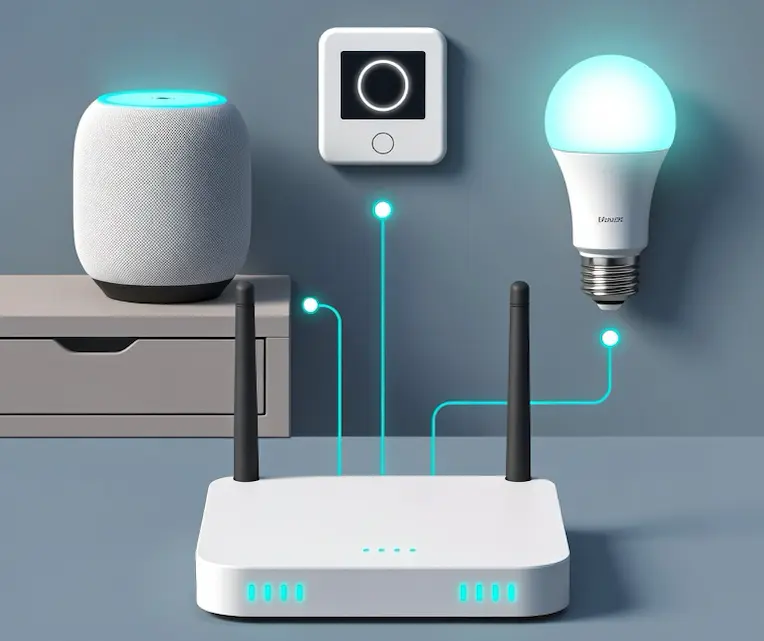
Building a smart home that is fast, reliable, and private requires more than buying the latest gadgets. The right foundations-local-first control, solid networking, secure remote access, and maintainable automations-make everything else work better. This guide collects practical best practices to help you design a setup that scales, stays secure, and keeps working even when the internet doesn't.
System Setup
Build a 100% Local-First System
Design your smart home to operate entirely within your local network, without depending on external cloud services. Keeping automations, device control, and data processing local dramatically reduces your attack surface and protects your privacy. Every cloud dependency is another company storing your data, another account that can be breached, and another external service that could fail or disappear. A local-first system keeps sensitive information like camera feeds, presence data, and daily routines inside your home, where you control it. The cloud should be optional convenience, not a requirement.
Prefer Mesh IoT Protocols Over Wi-Fi Whenever Possible
Avoid putting every device on Wi-Fi. While Wi-Fi works well for high-bandwidth devices like cameras, TVs, or speakers, it does not scale efficiently for dozens of small IoT devices. Each Wi-Fi device consumes airtime, increases contention, and adds overhead to your access points. As your network grows, this can lead to congestion, higher latency, and unstable connections.
For battery-powered devices, Wi-Fi is especially inefficient. Maintaining a Wi-Fi connection requires significantly more power than low-bandwidth IoT protocols, which leads to shorter battery life and more frequent replacements.
Instead, use protocols like Zigbee, Z-Wave, or Thread for most smart home devices. These technologies are specifically designed for IoT: they use low bandwidth, form self-healing mesh networks, and keep traffic off your main Wi-Fi infrastructure. This improves overall stability, extends battery life, and prevents your wireless network from being overloaded.
Reserve Wi-Fi for devices that truly need it, such as cameras, media devices, or high-data equipment. Everything else belongs on a dedicated mesh network.
Prefer PoE Zigbee, Z-Wave & Thread Dongles
Whenever possible, choose PoE-based dongles instead of USB ones. Ethernet devices are easier to place optimally, reduce USB interference, improve reliability, and can be powered centrally through your switch or UPS. This leads to a more stable and professional-grade setup.
Keep your Zigbee / Z-Wave / Thread meshes healthy
Mesh networks require intentional design. Battery-powered devices do not act as routers, so your mesh depends on powered devices to relay traffic.
Ensure you have enough mains-powered routers (plugs, switches, relays, bulbs) distributed evenly across your home.
Choose hardware that matches your stage and growth
For starting out, a Raspberry Pi is a perfectly valid option. It’s affordable, low power, easy to set up, and more than capable of running Home Assistant for small to medium installations. Many stable and well-functioning smart homes run on a Raspberry Pi without issues.
However, as your setup grows, hardware limitations start to matter. More integrations, larger databases, frequent automations, add-ons like MQTT, Frigate, or backups, and higher I/O usage can expose weaknesses in SD cards, USB storage, and limited CPU or memory.
At that point, moving to a small mini PC becomes a reliability upgrade rather than a luxury. Mini PCs offer better storage options (SSD or NVMe), more consistent performance, and headroom for future expansion.
Running Home Assistant on a hypervisor like Proxmox allows you to separate concerns: Home Assistant in one VM or container, backups in another, and additional services isolated from each other. This makes upgrades safer, failures easier to recover from, and long-term maintenance much simpler.
Start simple, but plan for growth. Choosing hardware intentionally helps avoid painful migrations later.
Prefer Open Standards and Open Source
Favor technologies based on open protocols and open-source software. Open ecosystems are more future-proof, easier to integrate, and less likely to lock you into a single vendor. They also benefit from community support, faster bug fixes, and better transparency. In the long run, openness equals stability.
Isolate experimental integrations and devices
New devices, beta firmware, or experimental integrations should not be added directly to your production setup.
Test them in isolation whenever possible. A single unstable integration can degrade overall system performance or flood logs with errors, making real problems harder to spot.
IP Network
Choose a Router You Fully Control
Avoid ISP-provided or locked-down routers. Use a router or gateway that gives you full control over firewall rules, VLANs, DHCP, DNS, and VPN access. Your router is the security perimeter of your entire home. Limited configuration means limited security and limited scalability. A configurable router lets you design your network intentionally instead of accepting vendor defaults.
Segment Your Network with VLANs
Never run your entire home on a single flat network. Segment devices into separate VLANs to improve both security and performance. At minimum, create dedicated networks for trusted devices (LAN), IoT devices, cameras, guests, and management interfaces. If an IoT device gets compromised, segmentation prevents it from accessing your personal computers or servers.
Design Wired First, Wireless Second
Always prefer Ethernet or PoE when a device has a fixed location. Wired connections are faster, more reliable, lower latency, and free up wireless airtime for devices that truly need mobility. Every device you move off Wi-Fi improves stability for everything else. Think of Wi-Fi as a limited shared resource, not the default.
Set Up an Internet Backup Connection
Your smart home increasingly depends on connectivity for updates, notifications, and remote access. A secondary WAN connection (4G/5G or a second ISP) keeps your system reachable during outages. Even a basic failover link can prevent downtime for critical services like cameras, remote access, or alerts.
Use Wired Backhaul for Access Points
If you deploy multiple access points, always connect them with Ethernet backhaul. Avoid wireless mesh whenever cabling is possible. Wireless backhaul halves available bandwidth and adds latency and instability. A wired backbone gives you consistent performance and lets each AP focus entirely on serving clients.
Use Static IPs or DHCP Reservations
Assign predictable IP addresses to important devices like servers, cameras, controllers, and infrastructure hardware. Stable addressing makes troubleshooting, monitoring, firewall rules, and integrations much easier. Random IP changes are a common source of “mysterious” smart home issues.
Continuously Monitor Network Health
Treat your network like production infrastructure. Monitor uptime, latency, packet loss, and bandwidth usage. Up time monitors, ping checks, and traffic graphs help you detect problems before they affect automations. Visibility turns guesswork into data-driven decisions.
Home Assistant
Never Expose Home Assistant Directly to the Internet
Do not open ports or expose your Home Assistant instance publicly. Direct exposure significantly increases your attack surface and makes your entire home vulnerable to brute-force attacks or zero-day exploits. Instead, use secure remote access methods like a VPN, Tailscale or Home Assistant Cloud. Your home automation server should be treated like critical infrastructure, not a public website.
Automate Daily Backups (Local and Offsite)
Backups are not optional. Automate daily snapshots of your Home Assistant configuration, add-ons, and databases. Store copies both locally and offsite (NAS, cloud storage, or another machine). Hardware fails, SD cards corrupt, and updates occasionally break things. A reliable backup strategy means you can restore your entire system in minutes instead of rebuilding for days.
Validate your backups periodically
Having backups is not enough. You should periodically verify that they actually work.
Backups can silently fail, become corrupted, or miss critical data due to misconfigurations, add-ons, or storage issues. Discovering this only after a failure defeats the entire purpose of having them.
Regularly test your Home Assistant backups by restoring them in a temporary environment, a virtual machine, or a spare system. Make sure automations, integrations, and critical settings are present and functional.
Validated backups turn a disaster recovery plan into a real one, giving you confidence that your smart home can be restored when something goes wrong.
Use Clear and Consistent Naming Conventions
Adopt a predictable naming scheme for entities, devices, and areas. Consistency makes automations easier to write, debug, and maintain. Clean names reduce mistakes and make your configuration readable months later when you revisit it.
Organize Devices with Areas, Categories, and Tags
Use Home Assistant’s areas, floors, labels, and tags to structure your setup logically. Grouping devices by location and function simplifies dashboards, automations, and troubleshooting. Good organization scales better as your system grows and prevents your instance from turning into an unmanageable list of hundreds of entities.
Keep Automations Modular and Simple
Avoid large, complex “mega automations.” Instead, create small, single-purpose automations that do one thing well. Modular logic is easier to test, reuse, and fix. When something breaks, you can quickly identify the cause without digging through hundreds of lines of YAML.
Prefer event-driven logic over constant polling
Polling-based automations generate unnecessary load and introduce latency. Whenever possible, rely on events, state changes, and triggers instead of frequent checks.
Event-driven logic is faster, more efficient, and scales better as your system grows. Polling should be a fallback, not the default approach.
Monitoring and alerting for core services
A smart home should fail loudly, not silently. One of the most common reliability issues is discovering that something broke only when you actually need it.
Set up basic monitoring and alerts for your core services and integrations: your Zigbee or Z-Wave coordinator, MQTT, automations, and critical devices like lights, alarms, or sensors. This can be as simple as using Home Assistant’s built-in system monitoring, binary sensors, and automation-based alerts.
If a coordinator disconnects, a service crashes, or an integration stops responding, you should get notified immediately. Otherwise, failures can go unnoticed for days, and you’ll only find out when lights don’t turn on, automations don’t fire, or security-related devices stop working.
Digital Security
Use HTTPS Everywhere, Even on Your Local Network
Encrypt all web interfaces, even inside your LAN. Without HTTPS, credentials and session cookies travel in plain text and can be intercepted by any compromised device on your network. Local traffic is not automatically safe. Using HTTPS protects logins, tokens, and sensitive data like camera feeds or dashboards from internal threats and accidental leaks.
Use Strong, Unique Passwords with a Password Manager
It’s strongly recommended to use a password manager to generate, store, and manage all your credentials for online services. Password managers provide encrypted vaults for sensitive information, allowing you to securely store usernames, passwords, credit card details, secure notes, and more. This approach improves security, reduces password reuse, and makes managing complex credentials effortless. You will need to define (and remember) a master password to access your password manager. This is the only password you need to memorize. Using a passphrase made of 4 to 6 random English words provides strong protection while remaining easy to remember. Make sure to back it up on paper and store it in a safe, secure location.
You can use this tool to check whether your password is strong enough.
Never Expose Devices or Systems Directly to the Internet
Avoid port forwarding to Home Assistant, cameras, routers, or any IoT device. Direct exposure makes them easy targets for automated scans and attacks. Instead, access your network remotely through a secure VPN or private overlay network like Tailscale. This keeps your services private while still allowing safe remote control.
Block IoT Devices from the Internet by Default
Treat IoT devices as untrusted by design. Most do not need internet access to function locally. Place them on a separate VLAN and block outbound internet traffic unless explicitly required. This limits data collection, protects your privacy, and prevents compromised devices from calling home or joining botnets.
Block unnecessary internet access
Most smart home devices don’t actually need internet access once they’re set up. Use router rules or firewall policies to restrict cloud access for local-only devices. This improves privacy, reduces unnecessary traffic, and significantly limits your attack surface.
Physical Home Security
Build Your Own Local Alarm System
Instead of relying on subscription-based alarm services, create your own alarm system directly inside Home Assistant. A local alarm gives you full control over sensors, automations, notifications, and integrations without monthly fees or cloud dependencies. It also continues working during internet outages and keeps all security data inside your home.
Prefer PoE Cameras with RTSP Support
Choose wired PoE cameras that support open standards like RTSP or ONVIF. PoE provides stable power and connectivity through a single cable, eliminating Wi-Fi issues and random disconnects. RTSP ensures you are not locked into vendor apps or cloud storage and allows you to integrate cameras with local NVRs and software of your choice. Reliability and openness are more important than “smart” cloud features.
Use Local Video Processing
Run object detection locally instead of sending video to the cloud. Local processing improves privacy, reduces latency, and avoids subscription costs. It also gives you smarter alerts based on real detections (person, car, package) rather than simple motion, which dramatically reduces false positives.
Install Door and Window Sensors Everywhere
Protect all entry points, not just the front door. Door and window sensors provide instant awareness when something opens unexpectedly and are the foundation of any alarm system.
Use Motion or Presence Sensors in Every Room
Motion or presence sensors add an additional layer of detection beyond entry points. They help identify unexpected movement inside the house and improve both security and automation logic. Presence sensors, in particular, enable more accurate occupancy detection, reducing false alarms while making lighting and climate automations smarter.
Reliability and Maintenance
Add Remote Power Control to Critical Systems
Place smart plugs or managed power outlets in front of key devices like servers, routers, or controllers. This allows you to remotely reboot frozen hardware without physically being home. Sometimes a simple power cycle is the fastest fix, and remote control can save hours of downtime when you are away.
Make Failures Visible
Silent failures are the most dangerous ones. If something stops reporting, disconnects, or goes offline, you should know immediately. Use health checks, uptime monitoring, and alerts to detect issues early. A smart home you cannot observe is impossible to maintain. If it breaks silently, it will stay broken.
Document Your Entire Setup
Treat your home like real infrastructure and document it properly. Keep records of your IP plan, VLAN structure, device inventory, credentials storage, and hardware locations. When something fails or needs replacement, documentation saves time and prevents guesswork.
Always Provide Physical Overrides
Smart systems should never remove manual control. Relays, switches, and critical devices must still function physically if the controller or network goes down. Lights should turn on, doors should unlock, and pumps should run even without automation. Smart should enhance your home, not create single points of failure.
Protect Critical Infrastructure with a UPS
Connect your core network and automation equipment to an uninterruptible power supply. Routers, switches, servers, PoE cameras, and your modem should remain online during short outages. This maintains security recording, remote access, and automations when they matter most. A few minutes of backup power can make a huge difference.
Keep Spare Devices on Hand
Hardware always fails at the worst possible moment. Keep spare sensors, relays, dongles, cables, and power supplies ready. Quick replacements reduce downtime and avoid waiting days for shipping. Treat critical components like consumables, not one-of-a-kind parts.
Battery management and spares
Battery-powered devices are convenient, but they silently introduce a maintenance dependency. Sensors, remotes, locks, and buttons will eventually fail if their batteries are ignored.
Document which devices use batteries, what type they require, and how many each one needs. This can be a simple note, spreadsheet, or inventory page, but it should exist. When a battery alert fires, you should already know exactly what to replace.
Keep spare batteries on hand for all common types used in your setup. This avoids last-minute runs to the store or temporarily broken automations because a sensor died at the wrong time.